Data Sources

The Data Sources section of ADAPT serves as a hub for managing database connections. You can create a Data Source by connecting directly to Generate's database via SQL Server to access the data needed for your reports or edit an existing Data Source.

It is important to know creating a data source is the initial step for users who are not uploading files and prefer to load data through SQL Server, as it prepares you for the next step of creating a data view, which then leads to the report creation.


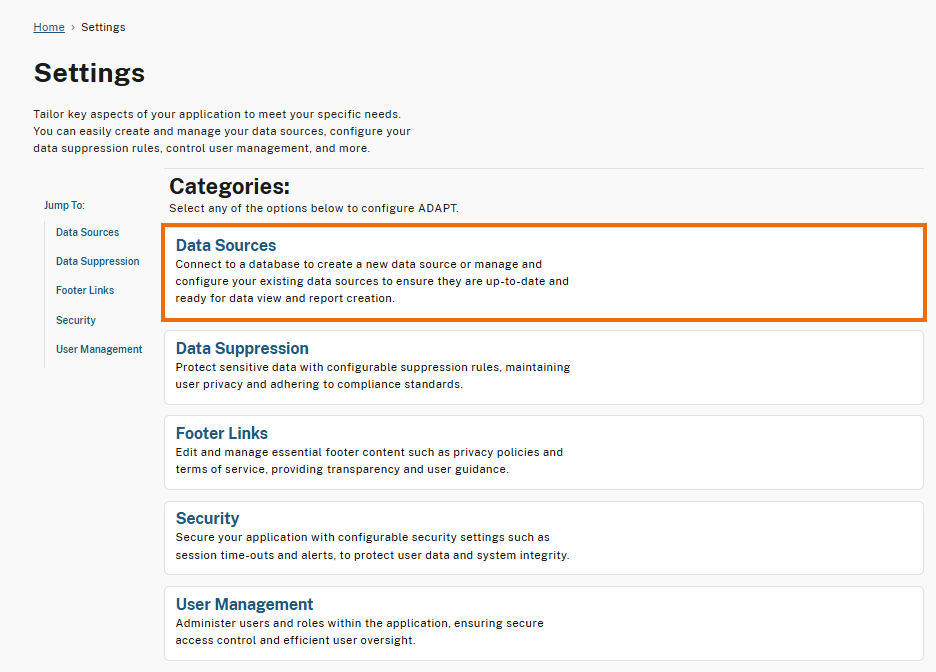
To access the Data Sources page, select the Data Sources category on the Settings page.

The Settings page displays different configuration categories. The Data Sources section is highlighted, providing options to connect to a database, create new data sources, or manage and configure existing ones.
Data Sources Category in Settings

Data Sources Page Feature Highlights

Key areas of the Data Sources page are outlined and numbered to highlight important features. Below, you’ll find detailed explanations of each numbered item outlined in the screenshot of the Data Sources page.

Data Sources page with outlined and numbered features: 1 highlights the 'Sort' button, 2 highlights the 'Create' button for adding a new data source, 3 highlights a data source item titled 'Demo Data 2024,' 4 highlights the 'Impact analysis' section, 5 highlights the 'Edit' button, and 6 highlights the 'View' button.
Data Sources Page
  1. Sort: Sort Data Sources in either ascending or descending order based on the last updated date for easier navigation.

  2. Create: This button allows you to create a new Data Source.

  3. Impact analysis: Available when you expand on a Data Source, providing you the number of Data Views and Report(s) using that Data Source.

  4. To learn more, please click here: Displays for a Data source that has Data Views and Report(s) created with that Data Source. When this link is selected, it shows a detailed summary of the selected Data Source, including a list of Data Views and Report(s) created from this Data Source.

  5. Edit: Allows you to edit the Data Source, including modifying its name, description, or database credentials

  6. View: Takes you to a read-only view of the selected Data Source, allowing you to inspect the details without making changes.


The following sections will walk you through how to Create, Edit, and View Data Sources.

Last updated