Edit Data Source

This section walks users through the process of editing an existing data source to either modify its name, description, or database credentials. To edit an existing Data Source, follow the process below.

Expand on Data Source

On the Data Source page, expand on the Data Source you wish to edit.

On the Data Sources page, the 'Demo Data 2024' item includes a highlighted 'plus' icon to expand on.
Data Source Expand Control

Select Edit

Select the Edit button to open the Data Source in edit mode. This will open the Data Source Wizard in edit mode to guide you through the 4-step process of editing a Data Source.

Data Sources page with 'Demo Data 2024' expanded. The 'Edit' button is highlighted.
Data Source Edit Button

Step 1. Define Your Data Source

You will be brought to Step 1 in the wizard. Here you can modify the following fields:

  1. Data source name

  2. Description

Step 1 of 4: Define your data source. Editable fields, highlighted in edit mode, include Data Source Name and Description.
Step 1: Data Source Editable Fields
circle-info

Note: These fields are optional to edit.

Select Next: Connect to procced to Step 2.

  • Select "Cancel" or "Close" to exit the wizard, which will discard any information entered or progress made up to that point.

Step 1 of 4: Define data source. The 'Next: Connect' button at the bottom is highlighted.
Next: Connect Button

Step 2. Connect to Your Database

On Step 2, you can modify the database connection credentials. If any changes are made to these fields, you must select the Test Connection button to validate the connection.

  1. Select the Edit Password button to reveal the Password field and Test Connection button.

  2. Optional fields to modify include:

    1. Server Address

    2. Port number

    3. Database name

    4. Username

    5. Password

Step 2 of 4: Define source connection. The highlighted fields—Server Address, Port Number, Database Name, Username, and Password—are editable in edit mode. Buttons include 'Edit Password,' 'Test Connection,' 'Back,' 'Next: Review,' and 'Cancel.'
Step 2: Data Source Editable Fields
circle-exclamation

After testing the connection or if no changes were made, select Next: Review to proceed to Step 3.

  • Select "Back" if you need to revise any previous steps.

  • Select "Cancel" or "Close" to exit the wizard, which will discard any information entered or progress made up to that point.

Step 2 of 4: Define source connection. The 'Next: Review' button is highlighted, allowing users to proceed after entering the required database connection details.
Next: Review Button

Step 3. Review Impact Analysis

On Step 3, you can view the Impact analysis, showing how your changes may affect existing data views or reports created with the Data Source.

Below is an example of a Data Source that has data views and reports created with it.

Step 3 of 4: Impact analysis page highlights the 'Impact analysis' section. It shows 2 data views and 1 report linked to the data source. Includes details of a report named 'IDEA Child Count and Educational Environments' with status 'Draft' and audience 'Internal.' Below, another data view with no linked reports is listed. Navigation buttons for 'Back,' 'Next: Save,' and 'Cancel' are visible at the bottom.
Step 3: Data Source Impact Analysis

Select Next: Save to proceed to Step 4.

  • Select "Back" if you need to revise any previous steps.

  • Select "Cancel" or "Close" to exit the wizard, which will discard any information entered or progress made up to that point.

Step 3 of 4: Impact analysis page highlights the 'Next: Save' button at the bottom.
Next: Save Button

Step 4. Data Source Summary

On Step 4, review the summary details of your Data Source and select Save.

  • Select "Back" if you need to revise any previous steps.

  • Select "Cancel" or "Close" to exit the wizard, which will discard any information entered or progress made up to that point.

Step 4 of 4: Define source summary. The 'Save' button is highlighted, allowing users to proceed to save.
Save Button

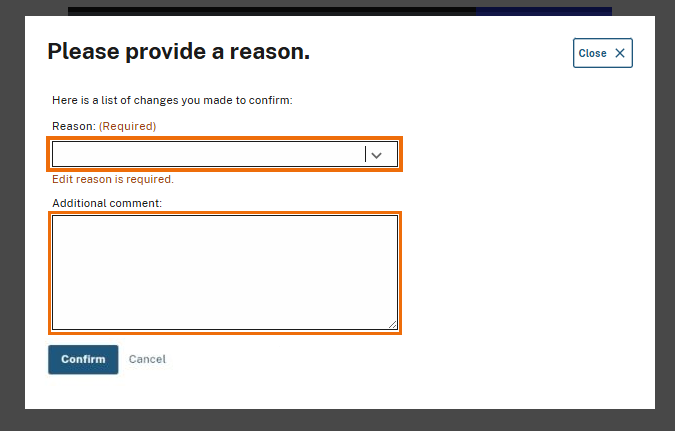
Once you have selected Save a modal will display, prompting you to provide a reason for editing the Data Source.

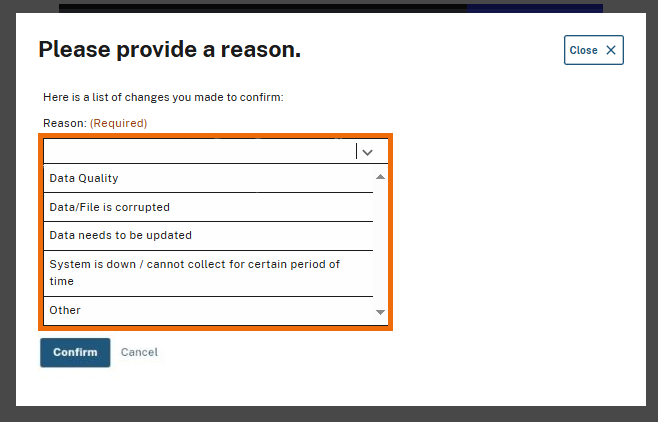
  1. Select the dropdown arrow on the Reason field and select one of the following options:

    1. Data Quality

    2. Data/File is corrupted

    3. Data needs to be updated

    4. System is down / cannot collect for certain period of time

    5. Other (Requires an additional comment)

  2. Fill out additional information in the Additional comment field (if required).

circle-info

If the reason "Other" is selected from the list, you will be required to provide additional comments in the "Additional comment" field.

Please provide a reason' modal. The 'Reason' dropdown field is highlighted as a required input. Highlighted below it is an optional 'Additional comment' text box, with 'Confirm' and 'Cancel' buttons at the bottom.
Data Source Reason Modal
A dropdown menu labeled 'Reason: (Required)' with multiple selectable options. The visible options in the list include 'Data Quality,' 'Data/File is corrupted,' 'Data needs to be updated,' 'System is down / cannot collect for a certain period of time,' and 'Other.' Users must select one reason before confirming their changes.
Reason Dropdown Field

Once you have provided a reason for your edits, select Confirm. You will be redirected to the Data Sources page and a success message will display, confirming your edits were saved.

Please provide a reason' modal with the 'Confirm' button highlighted. The 'Reason' field is set to 'Other,' and the 'Additional comment' field contains the text 'Edit data source demo.
Confirm Button

Last updated