Language Translation Options

The Language Translation Options section allows users to select a language their organization wishes to use to support translation in external reports. External reports will be displayed in English by default. If another language is selected and saved, external reports will display the selected language(s) as an option for external reports.

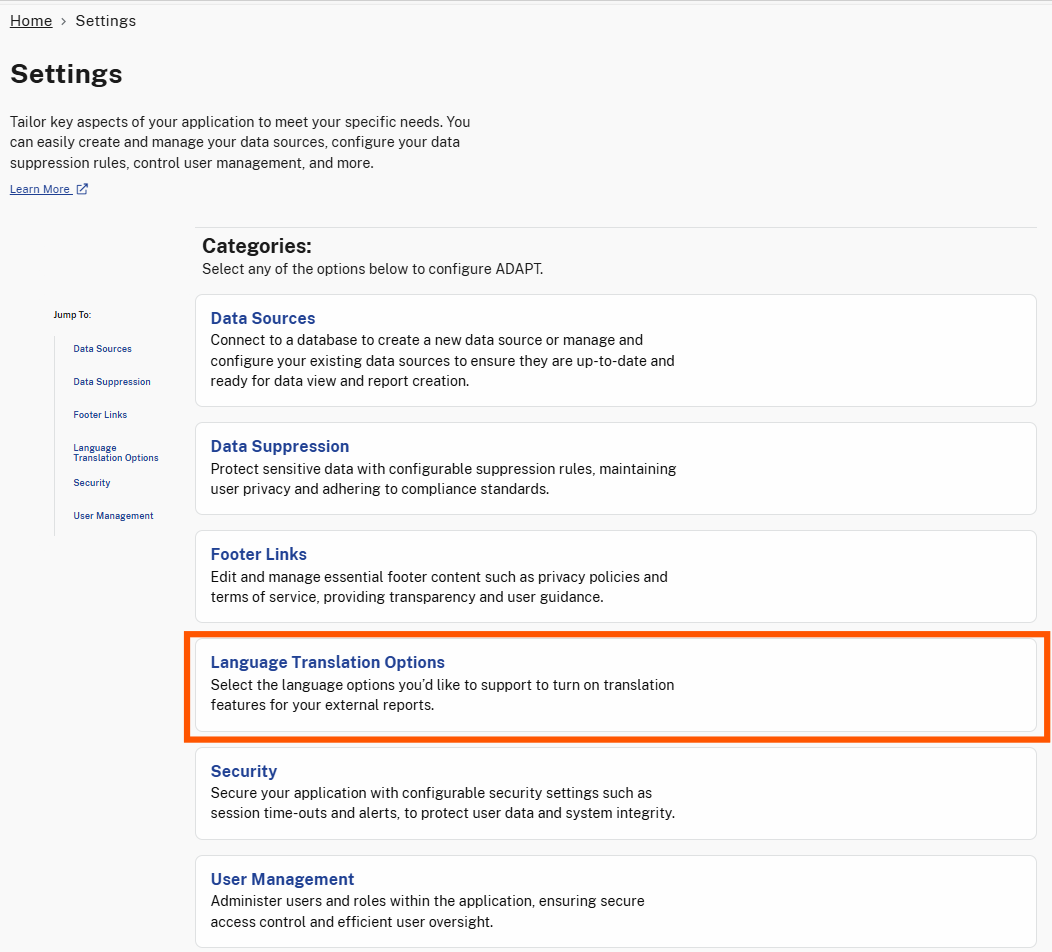
To access the Language Translation Options page, select the Language Translation Options category on the Settings page.

The Language Translation Options section is highlighted, providing options to set a language for an organization.

Language Translation Options in Settings

Select Language Translation Options

Follow the steps below to configure the Language Translation Option you'd like to set.

Step 1. Select Edit on Language Translation Options Page

On the Language Translation Options page, select Edit.

The Language Translation Options page allows users to set a language. The Edit button is highlighted in the upper right corner, allowing users to select language(s) their organization.

Edit button on Language Translation Options page

Step 2. Select Language

Select the checkbox next to the language from the list of available options.
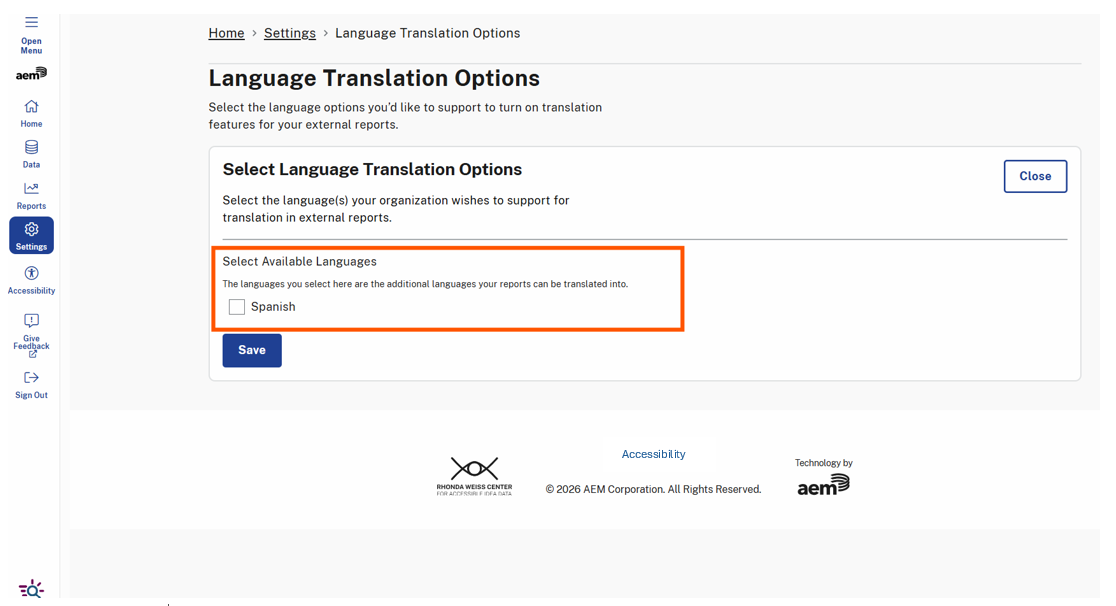
The Language Translation Options page displays Select Language Translation Options, allowing users to set a language for their organization to view external reports. The highlighted text shows languages that can be selected other than English.

Available language options

Step 3. Select Save

Once the language(s) are selected:

  1. Select Save.

The Language Translation Options page displays a highlighted Save button that allows users to confirm and apply any changes made to language selection.

Save button on the Language Translation Options page

  1. Once saved a success message will display notifying you that the Language Translation Options were saved successfully.
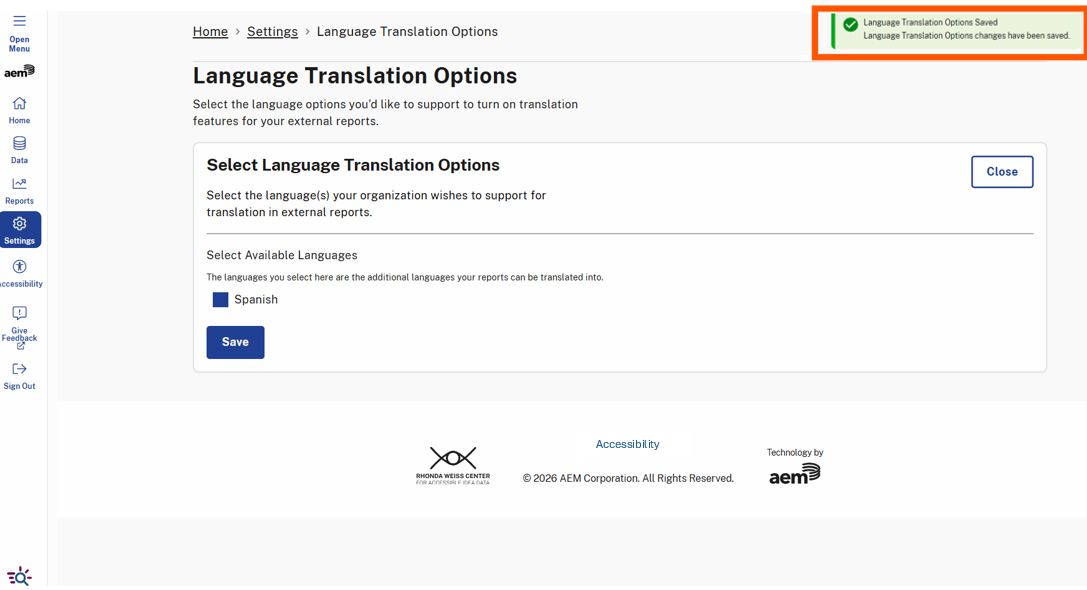
A green success message banner at the top right of the Language Translation Options page is highlighted, displaying "Language Translation Options Saved" with a confirmation message indicating that set language(s) have been successfully saved.

Language Translation Options Saved Message

Step 4. Select Close

After saving your changes, select the Close button to exit edit mode. This action will collapse and hide the Select Language Translation Options while keeping you on the Language Translation Options page.
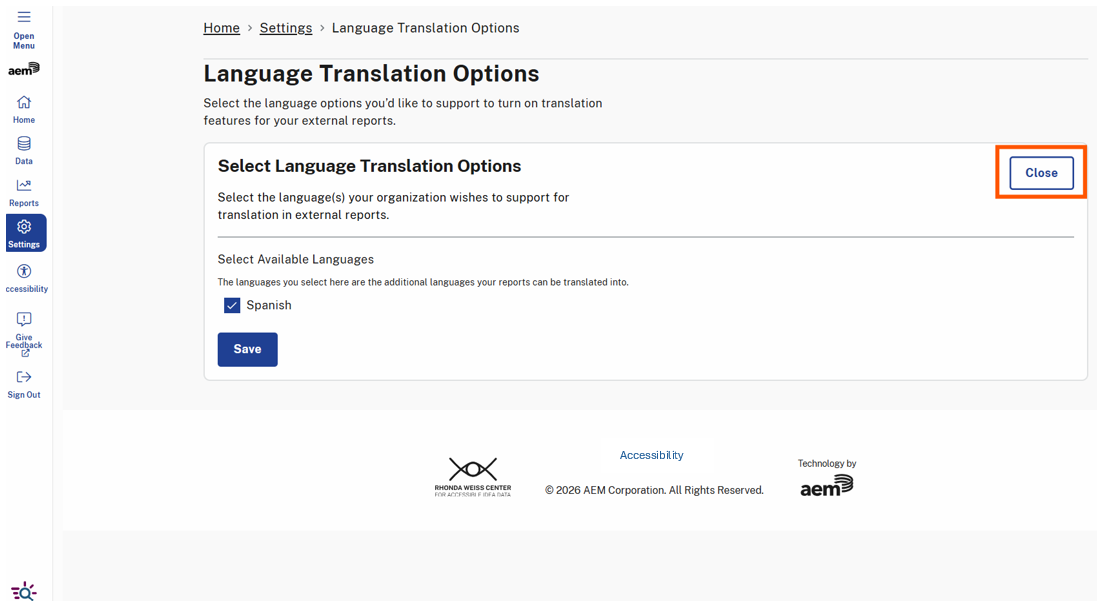
The Language Translation Options page displays the selected language settings and a highlighted "Close" button to collapse and hide the Select Language Translation Options.

Close Button on Data Suppression Page

Last updated