# Security
The Security section in the Settings page allows administrators to configure session timeout settings including the idle time, warning time, and timeout time. These settings protect user data, maintain system security, and help prevent unauthorized access to ADAPT by automatically logging users out after a period of inactivity.
To access the Security page, select the **Security** category on the Settings page.
Security Category in Settings
## Configure Session Timeout Settings
Follow the steps below to adjust and save your session timeout settings.
### **Step 1. Select Edit on Security Page**
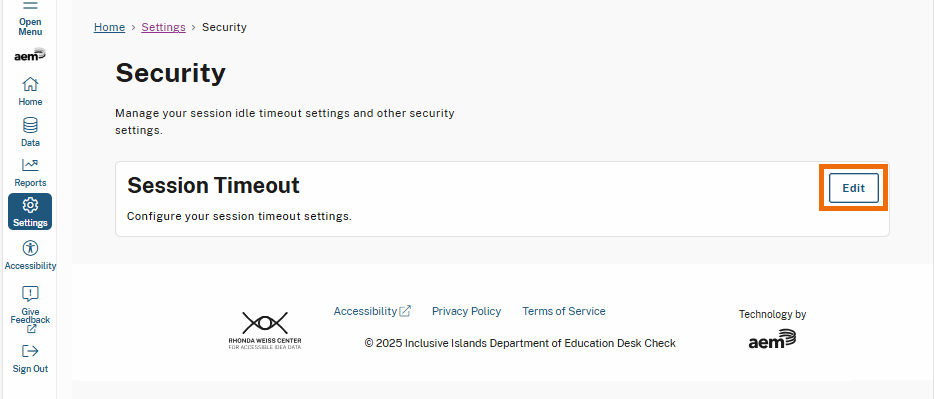
On the Security page, select **Edit**. This will display the fields for Idle Time, Warning Time, and Timeout Time.
Edit Button on Security Page
### **Step 2. Define Session Timeout Settings**
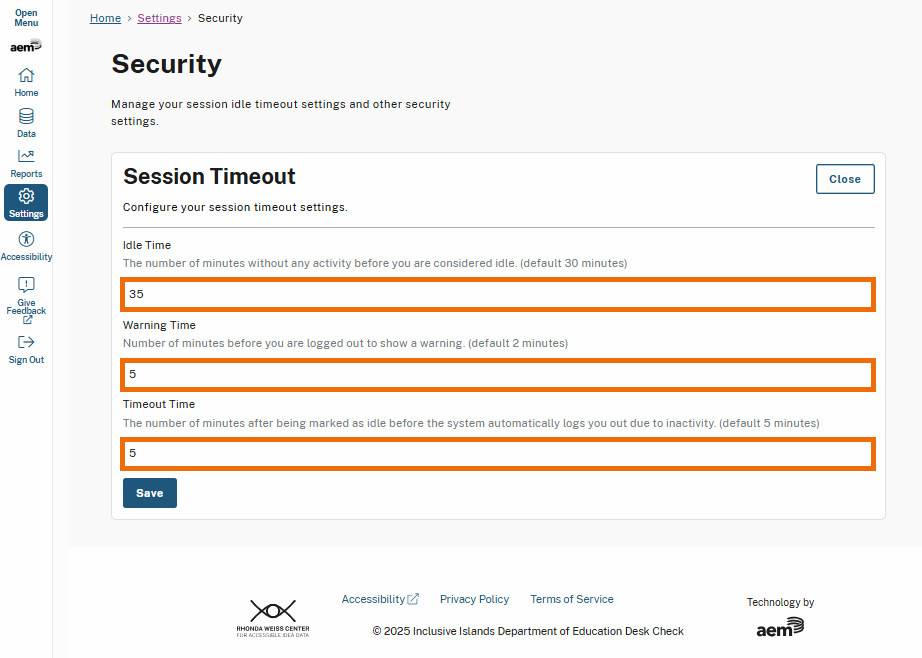
Enter values into the Idle Time, Warning Time, and Timeout Time fields. Use these fields to customize the following settings:
1. **Idle Time:**
1. Specify the number of minutes of inactivity before a session is marked as idle. The default setting is 30 minutes, but you can customize this based on your organization’s needs.
2. **Warning Time:**
1. Define how many minutes before the system logs the user out a warning message will appear. The default setting is 2 minutes, providing users time to respond and remain logged in.
3. **Timeout Time:**
1. Set the duration, in minutes, after a session is marked as idle before the system logs the user out completely. The default is 5 minutes.
Session Timeout Fields
### **Step 3. Select Save**
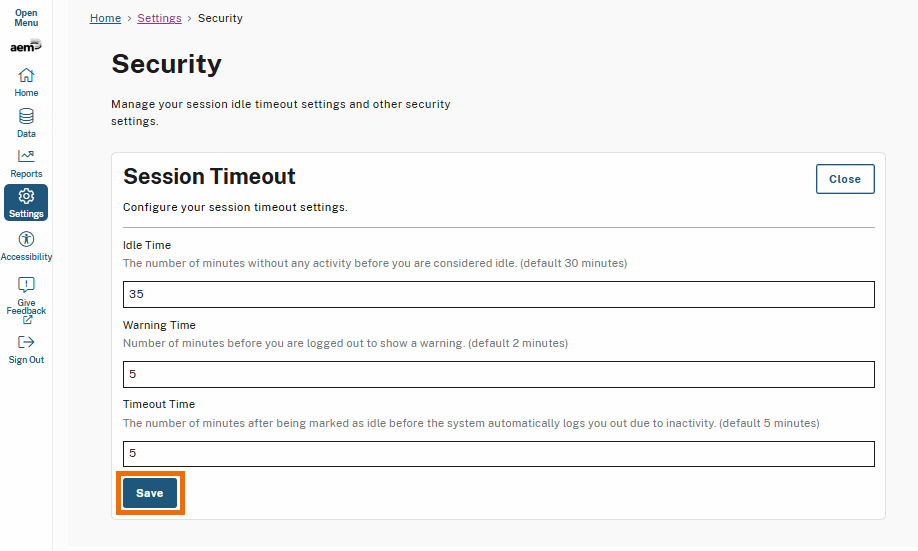
Once all the fields are correctly defined, select **Save**.
Save Button on Security Page
* A success message will display if the fields are correctly defined.
Settings Saved Message
* An error message will display if the warning time exceeds the timeout time. The Warning Time minutes must be **lower** than the Timeout Time minutes to save the settings.
* In the example below the Warning Time is **10**, and the Timeout Time is **5**.
Warning Time and Timeout Time Error Message
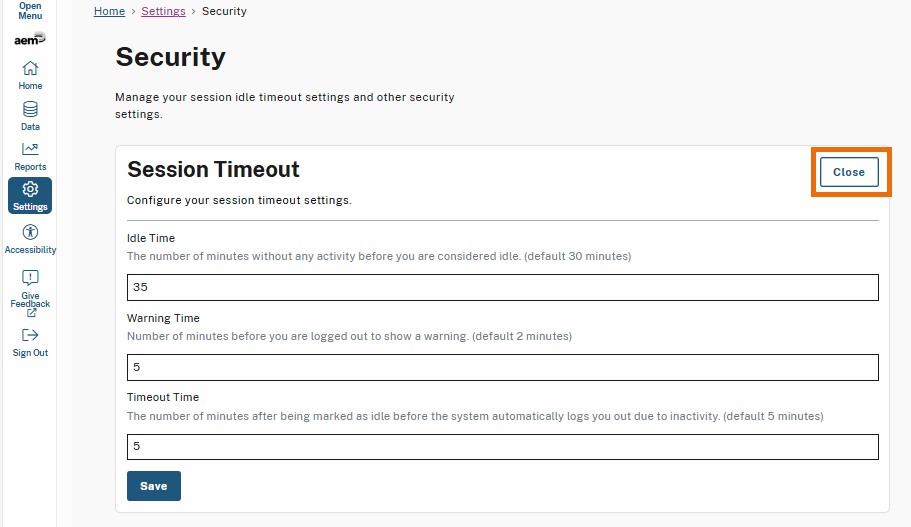
### **Step 4. Select Close**
After saving your changes, select the Close button to exit edit mode. This action collapses and hides the session timeout settings fields while keeping you on the Security page.