# Footer Links
The Footer Links section allows users to customize the footer content they want displayed across ADAPT. This allows you to tailor the footer to meet your organization’s specific needs and improve user access to resources such as, such as accessibility policies, privacy guidelines, terms of service, and other essential resources.
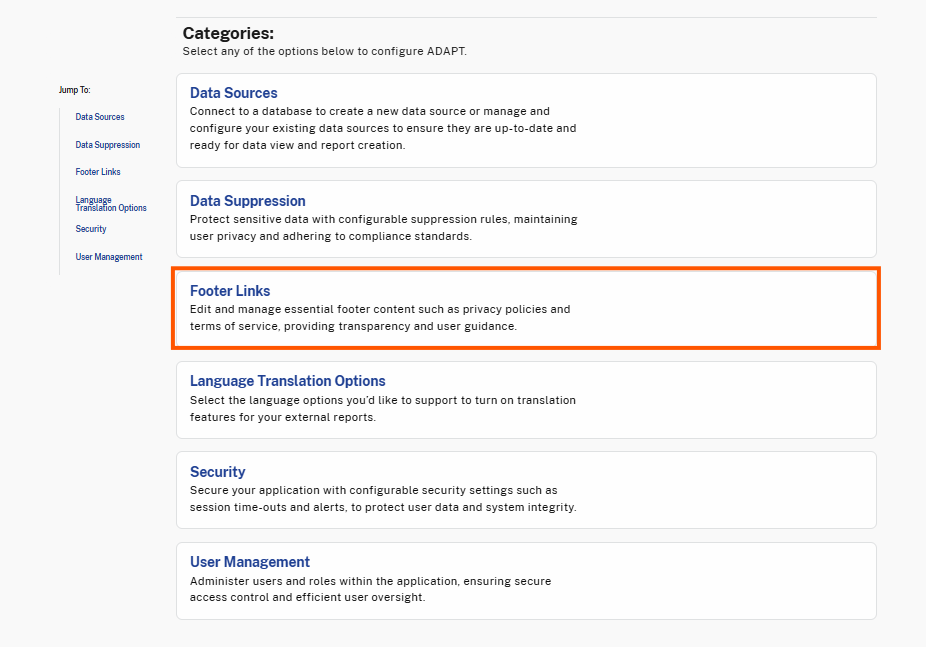
To access the Footer links page, select the **Footer Links** category on the Settings page.
Footer Links Category in Settings
## Configure Footer Links
In the Footer Links page, you can add new links or edit existing links by configure the link's label, URL, external link settings, and icons.
To configure Footer Links, follow the steps below:
### Step 1. Select Edit on Footer Links Page
On the Footer Links page, select **Edit**. This will display the configurable footer link fields.
Edit Button on Footer Links
### Step 2. Modify Footer Link Details
Once in edit mode, you can update the details of existing links. The following fields can be modified for each specified footer link:
1. **Link Label:**
1. Update the name of the link as it will display in the footer.
2. **Link Icon (Optional):**
1. Add or update an icon by pasting an icon class from Font Awesome into the **Link Icon** field.
3. **Link URL:**
1. Modify the web address associated with the link.
4. **Show on Admin site (selected by default):**
1. Displays link on Admin site.
5. **Show on Public Viewer site (selected by default):**
1. Displays link Public Viewer site.
6. **External Link Checkbox (Optional):**
1. Select this option if the link directs to an external website. If the External Link checkbox is selected, select the dropdown field and select how the link should open:
* **Open in same tab:** Opens in the current tab.
* **Open in new Tab:** Opens in a new browser tab.
7. **Remove**
1. Removes existing link card.
Edit Footer Link Fields
### Step 3. Add a New Footer Link (Optional)
If all fields for the existing links are filled out and you need to add another link, you can create a new footer link.
To add a new footer link:
1. Select the **Add Footer Link** button.
Add New Footer Link Button
2. Once the Add Footer Link button is selected, new footer link fields will display.
1. Enter the **Link Label** for the new link.
2. Enter the **Link URL** for the new link.
3. Configure additional settings such as **External Link, Show on Admin site, Show on Public Viewer site, Action, and Link Icon**, as described in Step 2 above. (Optional)
New Footer Link Fields
### Step 4. Save Changes
Once you have finished modifying or adding your footer links:
1. Select **Save** to apply the updates.
2. If you wish to cancel the changes, select the **Close** button in the top right corner instead.
Save and Close Footer Links Buttons
3. After saving, a success message will display notifying you Footer link changes have been saved.