# User Management
The User Management section is designed to help administrators effectively manage ADAPT users and their roles. It ensures controlled access and enhances the efficiency of user oversight. In this section, you can View user details, Assign roles, and Deactivate users.
To access the User Management page, select the **User Management** category on the Settings page.
User Management in Settings
### User Management Page Feature Highlights
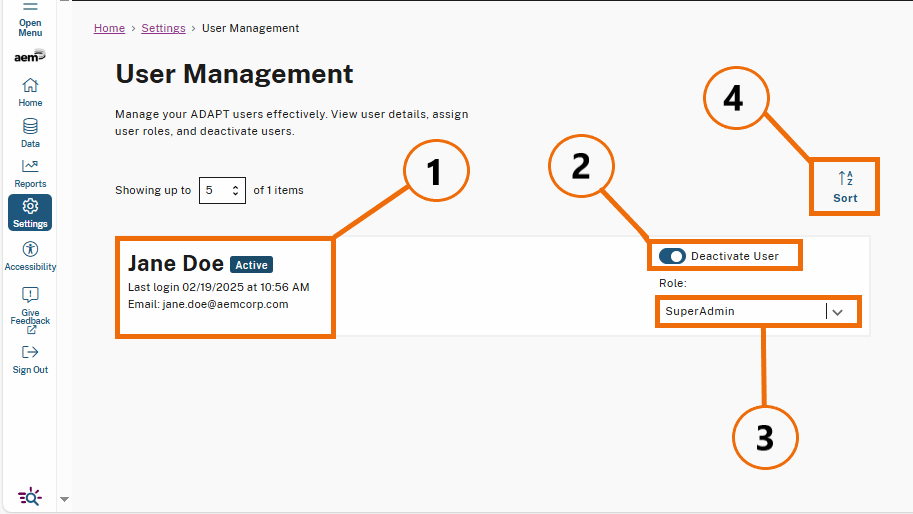
Key areas of the User Management page are outlined and numbered to highlight important features. Below, you’ll find detailed explanations of each numbered item outlined in the screenshot of the User Management page.
User Management Page
1. **User Details:** Displays the users name, email address, last login date and time.
2. **Deactivate User:** This toggle allows administrators to deactivate or activate a user's access without permanently removing their account.
3. **Role Dropdown Field:** This field allows administrators to assign user roles.
4. **Sort A-Z:** Sorts Users in either alphabetical order or reverse alphabetical order.
***
The following section walks you through how to manage user access and roles.
Manage User Access and Roles
Learn how to assign roles and deactivate users.
---
# Agent Instructions: Querying This Documentation
If you need additional information that is not directly available in this page, you can query the documentation dynamically by asking a question.
Perform an HTTP GET request on the current page URL with the `ask` query parameter:
```
GET https://weisscenter.gitbook.io/weisscenter/user-guide/settings/user-management.md?ask=
```
The question should be specific, self-contained, and written in natural language.
The response will contain a direct answer to the question and relevant excerpts and sources from the documentation.
Use this mechanism when the answer is not explicitly present in the current page, you need clarification or additional context, or you want to retrieve related documentation sections.